

On this page
- What the AutoCount node for n8n is
- What you can automate in AutoCount with n8n
- How to connect AutoCount Cloud to n8n
- Example workflows to build first
- Using AutoCount with n8n AI agents
- How the node handles AutoCount's API quirks
- The n8n node, a plugin or a custom integration?
- e-Invoicing and MyInvois
- Get your AutoCount workflows built
- Frequently asked questions
You can now connect AutoCount Cloud Accounting to n8n without writing code. On 26 October 2026, n8n verified our open-source AutoCount node as a community node on n8n Cloud. Anyone on the latest version of n8n Cloud can search "AutoCount" on the canvas and add it to a workflow, with nothing to install. Framworq built the node and maintains it. It is free under the MIT licence.
What the AutoCount node for n8n is
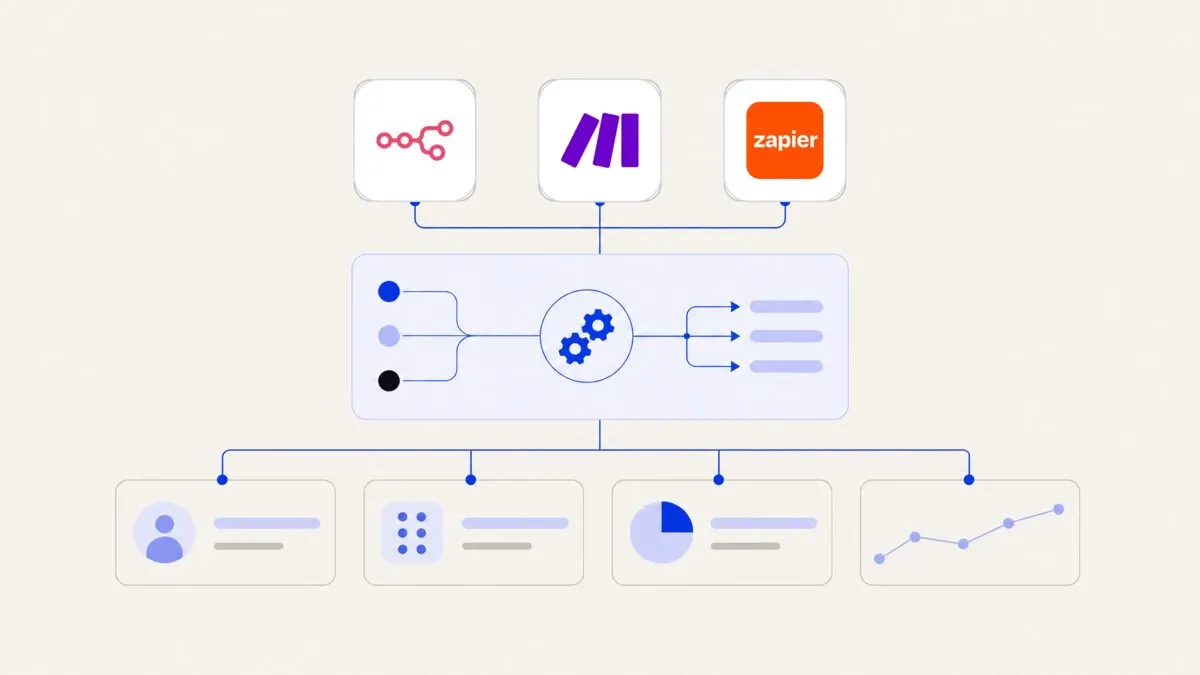
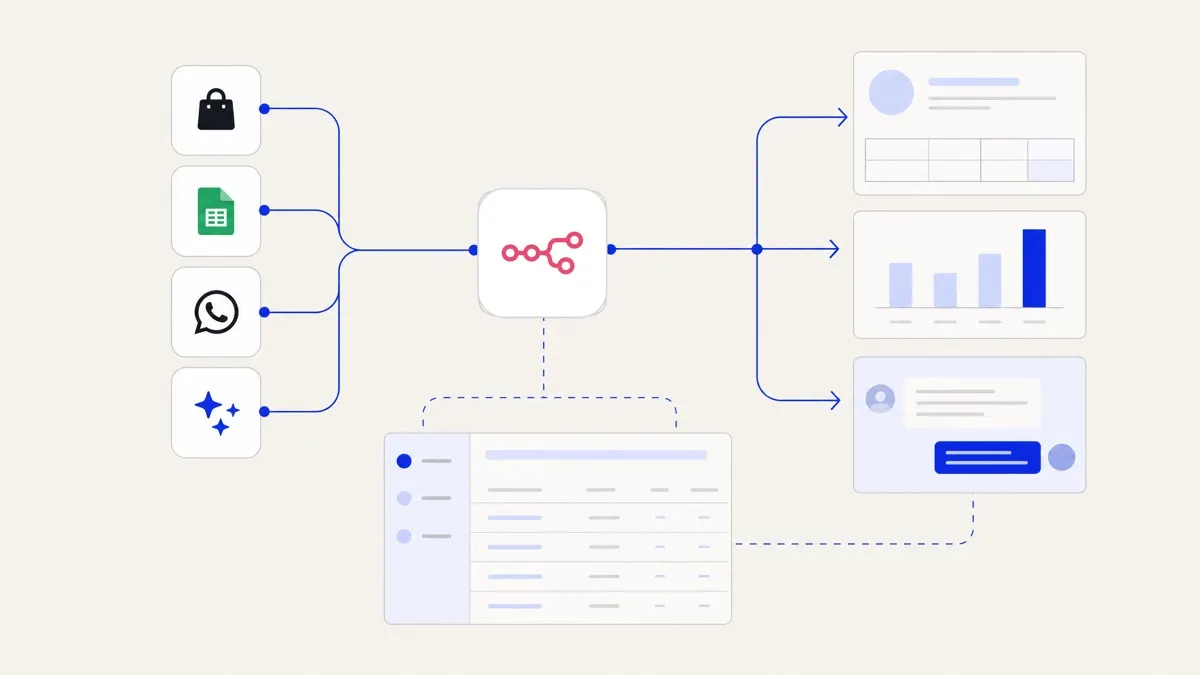
n8n is a workflow automation platform that connects more than 400 apps, from Shopify and WooCommerce to Google Sheets, WhatsApp and AI models. Each app is a node you drag onto a canvas. n8n has no built-in AutoCount node, so connecting the two usually meant hand-building HTTP requests against the AutoCount API.
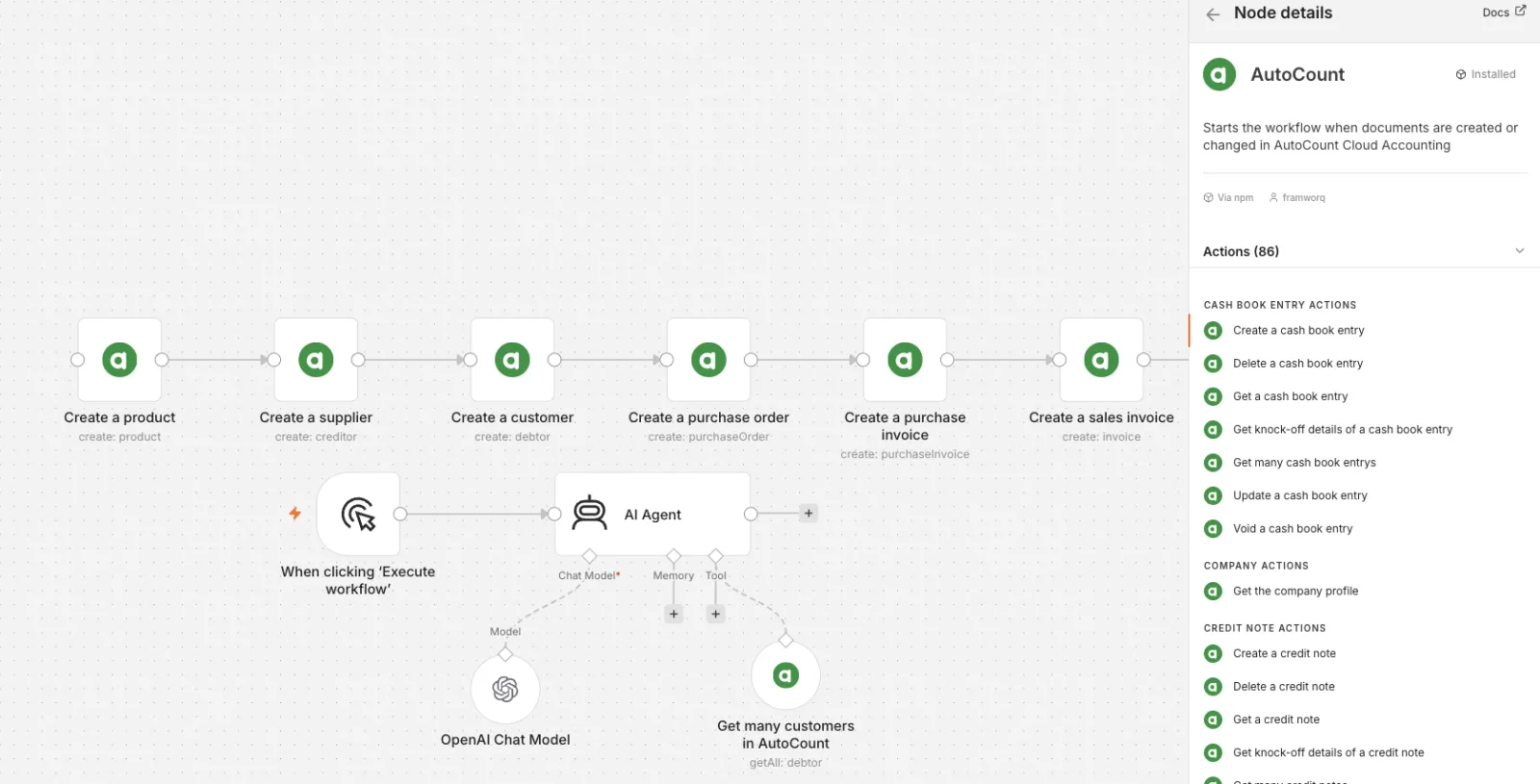
The AutoCount node, published as n8n-nodes-autocount, wraps the AutoCount Cloud Accounting Integration API in plain n8n actions such as "Create a sales invoice" or "Get many customers". Being verified means n8n reviewed the package and made it available on n8n Cloud. Before that, it had to be installed by hand on a self-hosted instance.
The node is an unofficial community integration. AutoCount is a trademark of Auto Count Sdn Bhd, and Framworq is not affiliated with Auto Count Sdn Bhd.
What you can automate in AutoCount with n8n
The node has 86 actions across AutoCount's main modules, plus a trigger.
| AutoCount module | What the node can do |
|---|---|
| Sales invoices and credit notes | Create, get, list, update, delete, void, get knock-off details |
| Quotations | Create, get, list, update, delete, void, set status (pending, success, lost, closed) |
| Purchase orders, invoices and returns | Create, get, list, update, delete, void, plus status or knock-off details |
| Cash book | Create payment vouchers and official receipts, get, list, update, delete, void |
| Journal entries | Create, get, list, update, delete, void, get knock-off details |
| Stock adjustments and transfers | Create, get, list, update, delete, void |
| Customers, suppliers and products | Create, get, list, update, delete, plus product stock balance |
| Lookups | Chart of accounts, locations, payment methods, sales agents, departments, areas, tax entities |
The AutoCount Trigger starts a workflow when a document of a chosen type is created, or created or updated. That covers edits, voids and approvals too. It starts from the moment you switch it on, so existing documents don't all fire at once, and it never emits the same document twice.
How to connect AutoCount Cloud to n8n
Setup takes a few minutes.
- Add the node. On n8n Cloud, open the nodes panel and search for AutoCount. If it doesn't appear, the instance owner or an admin turns on Verified community nodes in the Admin Panel and restarts the instance. On self-hosted n8n, go to Settings, then Community Nodes, then Install, and enter
n8n-nodes-autocount. - Find your Account Book ID. Sign in to AutoCount Cloud Accounting and open the company. The ID is the number in the address bar after the domain.
- Create an API key. In AutoCount, click the gear icon, then Find Your Key ID & API Key, then Create API Key. Copy the Key ID and the API Key.
- Create the credential in n8n. Add an AutoCount Cloud Accounting API credential with the three values. n8n tests it by reading your company profile.
Each API key belongs to one account book. If you run several companies, or you're an accounting firm with many client books, create one credential per book.
One thing to set up in AutoCount first: the API can't create GL accounts, credit terms, tax codes or locations. The node uses the ones already in your book, and every sales and purchase line needs a GL account.
Example workflows to build first
These are the AutoCount automations we see asked for most. Each one is a short n8n workflow.
Online orders into AutoCount sales invoices
A Shopify or WooCommerce trigger fires on each new order. The workflow maps the order's line items to AutoCount lines (product code, quantity, unit price, tax code and GL account) and creates the sales invoice. Give the node a customer code and it fills in the name, address and credit term from the customer record.
Payments recorded in the cash book
When a payment lands in your gateway or bank feed, the workflow creates an official receipt in the AutoCount cash book. You choose the payment method, such as BANK or CASH. The node sets the journal type from it, and sets the payment amount to the total of the lines.
Customers, products and stock kept in sync
A Google Sheet, CRM or store can be the source of new customers and products. The workflow checks whether a record exists, creates or updates it, and reads the stock balance back for your store or a daily report. New customers and suppliers are created as active, which AutoCount doesn't do by default.
Alerts when documents change
The AutoCount Trigger watches for new sales invoices, credit notes or purchase invoices, and sends a one-line summary to WhatsApp, Slack, Telegram or email. The same trigger can feed a Google Sheet that management reviews every morning.
Using AutoCount with n8n AI agents
The node also works as a tool for n8n's AI Agent. A finance team can ask an internal assistant "What did we invoice Customer A this month?" and the agent runs Get Many on sales invoices, filtered by date and customer code.
Because a tool can create, change and delete accounting records, set it up carefully:
- Connect it only to agents that trusted staff use. Never connect it to a public chatbot.
- Give the agent only the operations it needs. A reporting assistant needs Get and Get Many, not Delete.
- Put a person in the loop before anything is posted, for example by having the agent prepare a draft for approval.
How the node handles AutoCount's API quirks
The AutoCount API has a few behaviours that catch out hand-built integrations. The node handles them for you:
- Updates keep your lines. AutoCount replaces every line of a document on update. The node re-sends the existing lines unless you choose to replace them, so changing a remark never wipes an invoice.
- e-Invoice is never submitted by accident. On sales invoices and credit notes, the Submit e-Invoice option is sent as off unless you switch it on.
- Full records come back. AutoCount returns only a code when you create something. The node fetches the new record and returns it in full, ready for the next step.
- Rate limits are handled. AutoCount allows a limited number of requests per minute. The node waits and retries automatically.
- Errors are readable. AutoCount's own validation messages pass through as they are, so you can see which account or code is wrong.
The n8n node, a plugin or a custom integration?
There are three common ways to connect AutoCount to other systems. They suit different situations.
| Option | Best for | Watch for |
|---|---|---|
| n8n with the AutoCount node | Flexible workflows across many apps, AI agents, teams that want to own and change the automation | AutoCount Cloud Accounting only; someone has to build and look after the workflow |
| A ready-made connector plugin | One fixed connection, such as a single store, set up quickly | Limited to what the plugin supports; usually a recurring fee |
| Custom API integration | Desktop AutoCount editions, high volumes, complex rules and approvals | Longer to build and test |
The node works with AutoCount Cloud Accounting. AutoCount's desktop editions use a different integration route, which we confirm case by case as part of our AutoCount API integration service.
e-Invoicing and MyInvois
The node can switch on AutoCount's Submit e-Invoice option for a sales invoice or credit note, but it is off unless you choose it. A full e-invoicing workflow usually needs more than that: buyer details checked before submission, the validation result stored against each document, and rejections and cancellations routed to a person. We scope that as its own step. LHDN sets the rules and timelines, so check the current requirements on hasil.gov.my or with your tax adviser.
Get your AutoCount workflows built
The node is free, and the README on GitHub covers every operation, so you can build with it yourself. Teams bring us in when the work around it is bigger: reading supplier invoices with AI, approval steps, error handling, MyInvois e-invoicing or many company books. We build and test the whole workflow. Tell us about your process. No upfront consultation fee. Free discovery and a free tailored proposal.
Frequently asked questions
Is the AutoCount n8n node free and verified?
Yes. The node is free and open source under the MIT licence, and n8n verified it as a community node on n8n Cloud in October 2026. It is an unofficial community integration, built and maintained by Framworq, and is not made or endorsed by Auto Count Sdn Bhd.
Does it work with AutoCount Accounting desktop?
No. The node uses the AutoCount Cloud Accounting Integration API, so it works with AutoCount Cloud Accounting. Desktop editions need a different integration route, which we check during a free discovery.
Where do I find my AutoCount Cloud API key?
In AutoCount Cloud Accounting, open the company, click the gear icon, then Find Your Key ID & API Key, then Create API Key. You also need the Account Book ID, which is the number in the address bar after the domain.
Can I connect Shopify or WooCommerce to AutoCount without a plugin?
Yes. With n8n, a Shopify or WooCommerce trigger can create AutoCount sales invoices directly, with lines mapped from the order.
Can the node submit e-invoices to MyInvois?
It can switch on AutoCount's Submit e-Invoice option for a sales invoice or credit note. That option is always off unless you choose it. Checks, validation results and rejection handling are part of the wider workflow.
Do I need n8n Cloud, or does it work on self-hosted n8n?
Both work. On n8n Cloud it is available from the canvas with nothing to install. On self-hosted n8n, install n8n-nodes-autocount from Settings, Community Nodes.
Who can see my accounting data?
The node runs inside your own n8n instance and talks directly to the AutoCount API. Your data and credentials stay in your n8n and AutoCount accounts. Framworq does not receive them.