

On this page
- Why n8n is a good starting point for business automation
- 1. Lead capture and qualification workflow
- 2. Customer support triage and routing workflow
- 3. Automated daily and weekly reporting workflow
- 4. Cross‑tool data sync and enrichment workflow
- 5. Alerts and exception monitoring workflow
- How to roll out these n8n workflows without overwhelming your team
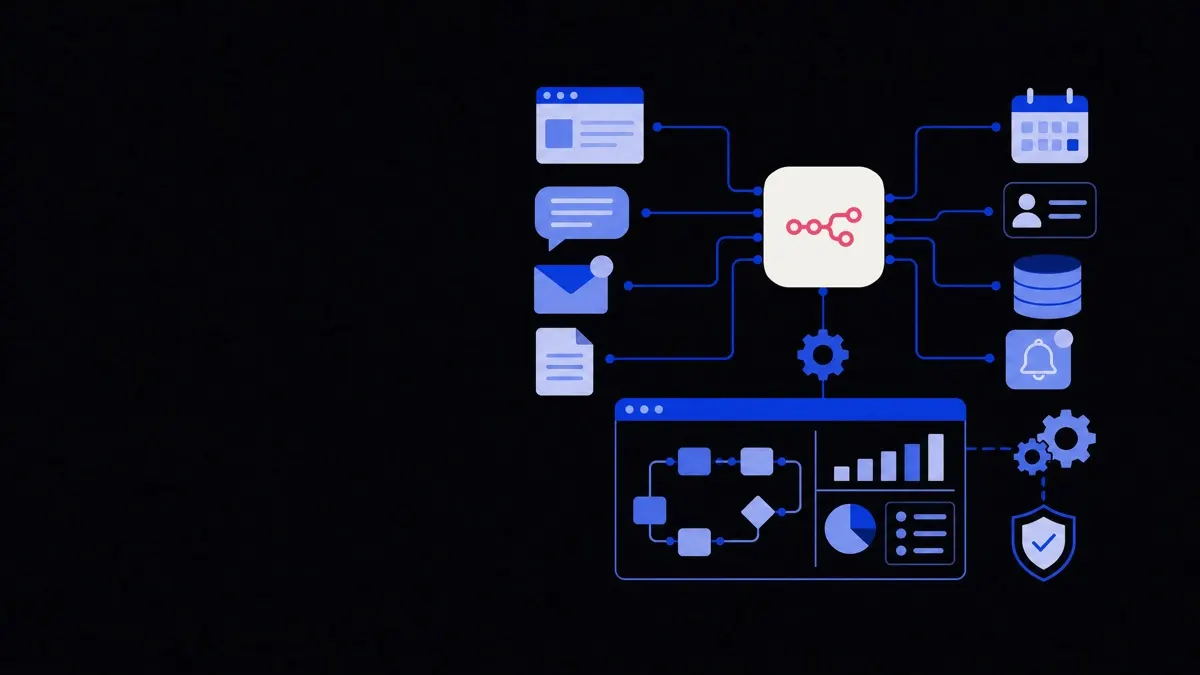
These n8n workflow examples show how most businesses can quickly automate lead capture, customer support, reporting, notifications, and data sync without custom code. By wiring your tools together in a few targeted workflows, you reduce manual work, centralise data, and create reliable processes that run the same way every time.
Why n8n is a good starting point for business automation
n8n is a visual workflow automation tool that lets you connect apps, APIs, and databases into step‑by‑step flows. Each flow, or workflow, is a series of nodes that receive data, transform it, and send it somewhere else.
For most teams, n8n sits between your existing tools and your more advanced automation plans. It lets you:
- Start with low risk by automating simple, repetitive tasks.
- Standardise key processes before you scale them.
- Prototype ideas before investing in custom development.
You can self‑host n8n for more control, or use the cloud version for less maintenance. Self‑hosting gives you more options with internal systems and compliance, but requires someone to manage updates and infrastructure. Cloud hosting is simpler but may limit what you can access behind a firewall.
The most effective n8n workflows are small, focused automations that handle one clear job from trigger to outcome.
1. Lead capture and qualification workflow
This is usually the first automation that delivers visible value. It connects your website forms, CRM, email, and internal notifications.
Goal: Every new lead is captured, enriched, routed to the right owner, and acknowledged within minutes.
Typical trigger options:
- New form submission in your website CMS.
- New lead in your marketing tool (HubSpot, ActiveCampaign, Mailchimp, etc.).
- New contact created via an ad platform lead form.
Core steps in the workflow:
- Receive the lead.
Use a webhook trigger or a native app trigger to capture the form data as soon as it is submitted.
- Clean and enrich data.
- Normalize fields (name casing, phone formats, country codes).
- Optionally enrich with external APIs (company size, industry, LinkedIn domain).
- Validate email with a verification API if needed.
- Score and qualify.
Define simple, transparent rules such as:
- Country allowed or excluded.
- Company size range.
- Role or seniority in the job title.
- Source or campaign.
Attach a numeric score or a status such as “Qualified”, “Review”, or “Disqualified”.
- Create or update CRM record.
- Look up existing contacts by email or company domain.
- Update records to avoid duplicates.
- Create a new deal or opportunity for qualified leads.
- Notify the right owner.
- Send a Slack or Teams message to the sales owner with key details.
- Include direct links to the CRM record.
- Send an immediate response to the lead.
- Trigger a welcome email or a short “We got your message and will reply in X hours” template.
- For higher‑value leads, send a booking link for a call.
Trade‑offs and tips:
- Keep scoring rules simple and review them monthly; complex scoring is harder to debug.
- Add logging nodes in n8n for failed leads so you can see exactly where and why they dropped.
- If your lead sources or CRM APIs are inconsistent, consider pairing this with more robust API integration services once the logic is stable.
2. Customer support triage and routing workflow
Support teams benefit from automations that sort, route, and enrich tickets before anyone reads them.
Goal: Automatically classify support requests, send them to the right channel, and keep customers updated on their ticket status.
Typical trigger options:
- New ticket in your helpdesk (Zendesk, Freshdesk, Intercom, HubSpot Service Hub).
- New email arriving in a shared inbox.
- New chat conversation started.
Core steps in the workflow:
- Capture the ticket.
Use the helpdesk’s native trigger or connect to a shared inbox via IMAP/SMTP nodes.
- Classify the request.
Start with simple rules:
- Keywords in subject/body (e.g., “invoice”, “password”, “refund”).
- Channel (chat vs email vs web form).
- Customer plan (free vs paid vs enterprise).
If you are using AI classification, keep a fallback rule‑based path so the workflow still works when AI fails or is unavailable.
- Enrich with account information.
- Look up the customer in your CRM or billing system.
- Attach plan type, MRR, and previous ticket count as tags or custom fields.
- Add internal priority labels based on value or risk.
- Route to the right queue or person.
- Assign to teams such as “Billing”, “Technical”, “Account Management”.
- Escalate high‑priority customers to a special queue or Slack channel.
- For simple FAQs, optionally trigger an auto‑response and downgrade the priority.
- Update the customer on status.
- Send a confirmation with the ticket ID and expected response time.
- For high‑priority customers, send a more personalised message or notify the account manager.
- Log metrics for reporting.
- Store category, channel, and response times in a central store (e.g., a database or Google Sheet).
- Use this as input for later reporting workflows.
Trade‑offs and tips:
- Do not auto‑close tickets based only on keyword rules; always keep a human checkpoint.
- Start with broad categories and refine later as the team sees misclassifications.
- If you plan to integrate phone or voice channels later, make sure your categories work across email, chat, and voice so you can reuse the same workflow with AI chatbots and voice agents.
3. Automated daily and weekly reporting workflow
Manual reporting is slow and error‑prone. n8n can fetch metrics from multiple systems and send a digest to your team on a schedule.
Goal: Provide consistent, scheduled reports from multiple tools in one email or Slack message.
Typical trigger options:
- Cron trigger for daily, weekly, or monthly schedules.
- Manual trigger for on‑demand reports.
Core steps in the workflow:
- Define your key metrics.
Decide what matters most, for example:
- New leads, qualified leads, and opportunities.
- New signups, activations, and churned accounts.
- Support ticket volume and first‑response times.
- Fetch data from each source.
- Use native app nodes (HubSpot, Salesforce, Stripe, etc.) wherever possible.
- Use HTTP Request nodes for custom or internal APIs.
- For databases, use only read‑only accounts for reporting.
- Aggregate and transform.
- Calculate totals, averages, and period‑over‑period changes.
- Group data by source, owner, region, or product line.
- Round numbers and simplify so the summary is easy to scan.
- Format the report.
- Build a simple text summary with headings and bullet points.
- For richer detail, attach a CSV or link to a dashboard, rather than sending long tables in chat.
- Send to the right channel.
- Email summary to leadership or managers.
- Post key highlights to a Slack or Teams channel.
- Optionally send more detailed breakdowns only to people who need them.
- Log past reports.
- Store a copy of each summary in a database or shared drive.
- This makes it easier to recreate charts later or audit historical numbers.
Trade‑offs and tips:
- Running large data pulls too often can hit API limits; adjust cron schedules and narrow your date ranges.
- For complex dashboards, consider pairing n8n with dedicated dashboard development so n8n just handles the data collection, not the visualisation.
- Keep the report short and link to deeper sources so people actually read it.
4. Cross‑tool data sync and enrichment workflow
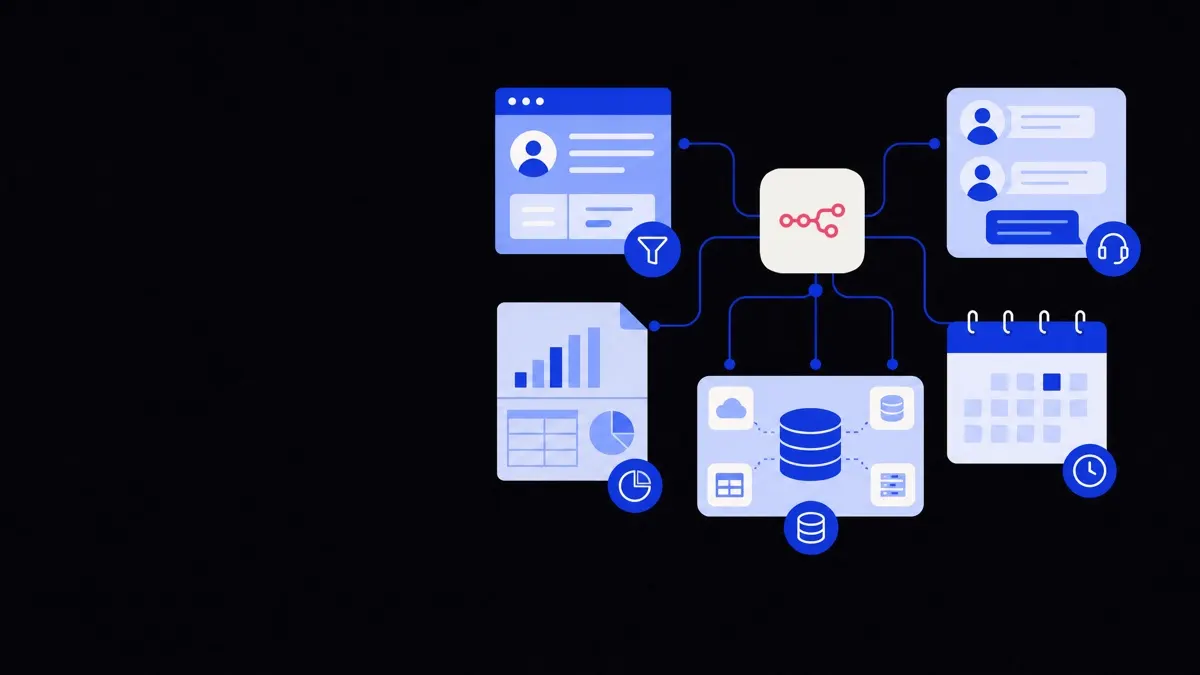
Many businesses have customer data scattered across CRM, billing, product, and support tools. n8n is useful for keeping key fields aligned without full‑scale data engineering.
Goal: Keep critical customer attributes in sync across systems so teams see consistent information.
Typical trigger options:
- Record created or updated in CRM.
- Payment event from billing platform.
- Scheduled check for changes (cron‑based).
Core steps in the workflow:
- Detect a change in the source of truth.
Decide which system owns which fields. For example:
- CRM owns contact details and lifecycle stage.
- Billing owns subscription status and MRR.
- Product database owns usage metrics.
- Fetch the latest version of the record.
- Use the record ID, email, or customer ID as the key.
- If multiple systems use different IDs, build a simple mapping table or lookup.
- Compare fields and detect differences.
- Only propagate changes when a field actually changed.
- Avoid overwriting manual edits in other tools; this is where a “source of truth” decision matters.
- Update downstream systems.
- Push updated fields to the CRM, helpdesk, or marketing tool.
- If a customer churns, update their status everywhere and adjust segments.
- If a customer upgrades, flag them as high value for support and sales.
- Handle conflicts and errors.
- When two systems disagree and you cannot choose a clear winner, log the conflict for manual review.
- Alert a Slack or email channel for repeated failures or API errors.
- Maintain audit logs.
- Write a lightweight change log with timestamp, system, and fields updated.
- This helps explain why a field changed and is useful for compliance.
Trade‑offs and tips:
- n8n is strong for operational syncs, but for heavy analytics or large‑scale data warehousing you may outgrow it and need a dedicated pipeline.
- Be disciplined about what you sync; synchronising every field from every tool quickly becomes hard to reason about.
- When you are ready for deeper, API‑driven integrations across tools, explore a more structured approach like custom API integrations instead of many ad‑hoc mappings.
5. Alerts and exception monitoring workflow
Good automation is not just about doing work when things go well; it is also about catching issues fast. n8n can serve as a simple monitoring layer that watches for exceptions and alerts the right people.
Goal: Detect operational issues quickly and route them to the right owner with enough context to take action.
Typical trigger options:
- Webhook events from monitoring tools or application logs.
- API polling of key metrics (e.g., error rate, queue size) on a schedule.
- Database queries run every few minutes or hours to find anomalies.
Core steps in the workflow:
- Define what “exception” means.
Examples include:
- Payment failures above a certain threshold.
- API error rates above a defined percentage.
- Orders stuck in a pending state for too long.
- Support response times exceeding your target.
- Pull or receive the underlying data.
- Use HTTP Request nodes to pull from monitoring services.
- Run SQL queries to check for stale or inconsistent records.
- Process log entries arriving via webhooks.
- Apply rules or thresholds.
- Keep rules explicit and versioned (e.g., 5xx rate > 2% for 5 minutes).
- Combine conditions to avoid noisy alerts; for example, trigger only if both volume and error rates are high.
- Aggregate related events.
- Group similar issues to avoid sending one alert per error.
- Batch findings into a summary every few minutes.
- Route alerts with context.
- Post to a dedicated incident channel with:
- What happened.
- When it started.
- Effects (e.g., “payments failing for EU customers”).
- Links to dashboards or logs.
- Email critical stakeholders when thresholds pass a more severe level.
- Post to a dedicated incident channel with:
- Create follow‑up tasks.
- For recurring issues, automatically create tickets in your issue tracker.
- Attach the raw data needed to reproduce and investigate.
Trade‑offs and tips:
- Avoid routing everything to one generic channel; segment alerts by area (payments, support, infrastructure).
- Start with a small number of alerts and tune them until they are reliable before you add more.
- If you need more advanced routing logic with agents taking automated actions, you can combine n8n with AI agent development and escalate only the complex cases to humans.
How to roll out these n8n workflows without overwhelming your team
Automation projects fail when they try to do everything at once. These five n8n workflow examples are designed to be implemented gradually and improved over time.
A practical rollout sequence looks like this:
- Start with one simple workflow.
Lead capture or basic reporting is often the easiest and most visible win.
- Define success metrics.
- Time saved per week.
- Fewer manual errors.
- Faster response or resolution time.
- Document the process before you automate.
Write down the manual steps, edge cases, and exceptions. Then mirror that in n8n instead of inventing a new process on the fly.
- Run in parallel with the old process.
For the first weeks, keep the manual process as a backup. Compare outputs and adjust the workflow until you trust it.
- Gradually increase complexity.
Add enrichment, scoring, and more branches only after the base workflow is stable.
- Review workflows quarterly.
- Remove steps that no longer match your process.
- Update rules as your products or pricing change.
- Check for brittle points where one API failure stops everything.
If you need help choosing which processes to automate or how to architect them across multiple systems, working with structured workflow automation services or broader business process automation support can keep your n8n setup maintainable as your needs grow.