
Getting real value from Gemini in Google Workspace
Gemini in Google Workspace can cut repetitive work in Gmail, Docs and Sheets, but only if you design clear use cases, prompts, and guardrails.
On this page
- What is Gemini in Google Workspace actually good at?
- How to get practical value from Gemini in Gmail
- Using Gemini in Docs without losing your voice
- Making Gemini in Sheets useful for real business data
- Designing team-wide Gemini workflows in Workspace
- When you should go beyond Gemini’s built-in features
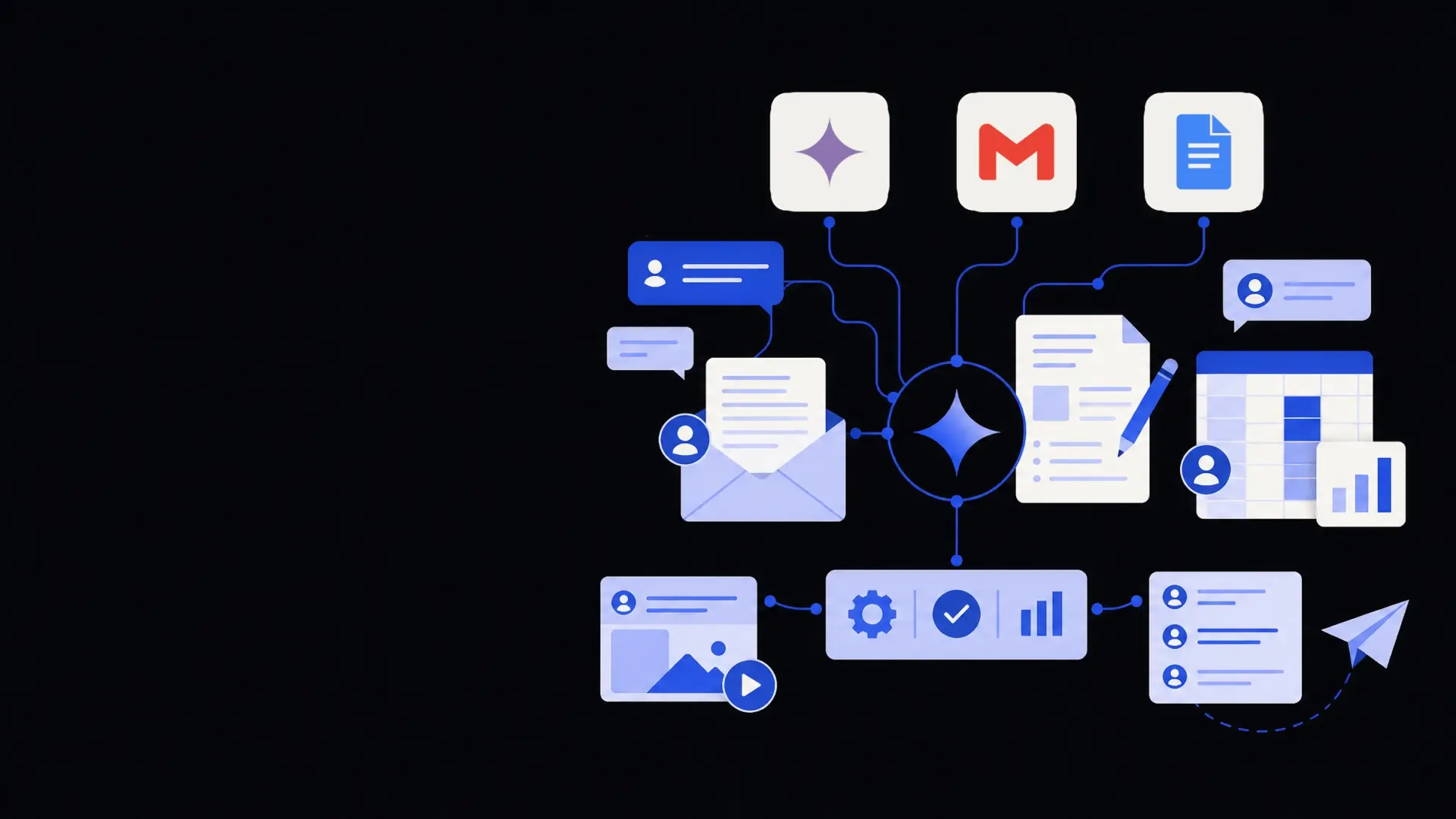
Gemini in Google Workspace is most valuable when you give it repeatable roles in Gmail, Docs and Sheets, such as drafting, summarising and checking work, instead of asking it random one-off questions. By designing a few standard workflows, setting prompt templates, and defining clear rules for when humans review outputs, you can save hours each week without losing control of quality or compliance.
What is Gemini in Google Workspace actually good at?
Gemini in Google Workspace is a set of AI features built into Gmail, Docs, Sheets and other Google apps that help with writing, reviewing and working with data.
It is most useful for three kinds of work:
- Language-heavy tasks – emails, documents, comments and basic translations.
- Pattern-based data tasks – cleaning lists, categorising items, drafting formulas.
- Knowledge recall and synthesis – pulling facts from Drive files and summarising.
Where it struggles is just as important:
- It can sound confident but be wrong, especially with niche data or out-of-date facts.
- It may misunderstand vague prompts and produce generic text.
- It cannot replace formal legal, financial or HR advice.
The goal is not to replace people, but to move them up a level: Gemini drafts, structures and checks; humans decide, refine and approve.
Treat Gemini as a tireless junior assistant with review rights, not as an unsupervised decision-maker.
How to get practical value from Gemini in Gmail
Email is where most teams feel Gemini’s impact first, because the patterns are obvious and repetitive.
Core Gmail workflows worth automating
- Drafting outbound emails from bullets
- You jot down 3–5 bullet points.
- Gemini turns them into a clear, polite email in your tone.
- You edit for nuance and send.
- This works especially well for sales replies, project updates and internal announcements.
- Summarising long threads
- For long reply chains, have Gemini summarise the key decisions, open questions and next steps.
- Use the summary as the first paragraph of your reply to show you have heard everyone correctly.
- Rewriting for tone and audience
- Ask Gemini to adjust tone: more concise, more formal, clearer for non-experts.
- Use this to standardise how customer-facing teams respond under pressure.
- Creating response templates
- For FAQs or repeated scenarios, use Gemini to propose 2–3 template versions.
- Store the best variants as canned responses, not as fresh AI generations each time.
- This reduces risk and keeps messaging consistent.
Guardrails for safe Gmail use
To keep Gemini useful rather than risky in Gmail, set a few team rules:
- No sensitive content drafting – avoid using Gemini for highly confidential matters (e.g. layoffs, M&A, disciplinary notes).
- Always skim for hallucinations – check names, dates, numbers and any claims it adds.
- Stay short – ask Gemini to be brief; long AI emails often sound less human and get skimmed.
- Log critical decisions elsewhere – for important decisions, ensure the record sits in your system of record, not just in an email Gemini helped write.
If you are formalising this as part of wider operations work, consider mapping Gemini-assisted Gmail flows into your broader business operations automation plans so email does not become a silo.
Using Gemini in Docs without losing your voice
Gemini in Docs shines when you use it to structure and accelerate writing, not to replace it entirely.
Where Gemini adds the most value in Docs
- Outlining and structuring
- Provide a short description of the document’s purpose and audience.
- Ask Gemini to suggest an outline with headings and a rough sequence.
- You adjust that outline before any drafting starts.
- This keeps complex documents from drifting off-topic.
- First-draft generation
- For internal documents (policies, project briefs, meeting notes), let Gemini write a first pass against your outline.
- Mark any sections that must be written by a subject-matter expert and skip AI there.
- Use tracked changes for human edits to keep accountability clear.
- Condensing long drafts
- Paste rough text from notes, transcripts or older documents.
- Ask Gemini to summarise, remove repetition and propose a tighter version.
- This works well for simplifying technical explanations for non-technical readers.
- Consistency and formatting
- Ask Gemini to:
- Standardise headings and voice.
- Add clear bullet lists and numbered steps.
- Rewrite passive voice into active where helpful.
- This is particularly useful when multiple authors contribute.
- Ask Gemini to:
Keeping control of quality and compliance
There are trade-offs when using Gemini in Docs:
- Speed vs originality – AI-written sections may sound generic. For external content, treat AI text as scaffolding, not final copy.
- Compliance risk – for policies, contracts or anything regulated, require subject-matter experts to own final wording.
- Attribution – Gemini may resemble content it has seen in training. Always review for unintended similarity to public sources.
A simple pattern that works for most teams:
- Human outlines the document.
- Gemini drafts within that structure.
- Human revises and adds expertise.
- Someone else reviews for clarity and risk before sharing.
If you are already using other automation tools, you can combine Docs workflows with document processing and automation services to move information cleanly between PDFs, Docs and downstream systems.
Making Gemini in Sheets useful for real business data
Gemini in Sheets is best treated as a helper for formulas, quick analysis and cleaning messy lists, not as a full analytics engine.
Reliable everyday uses in Sheets
- Formula generation and explanation
- Describe what you want in plain language, such as:
- “Add a column that labels rows as ‘High’, ‘Medium’ or ‘Low’ based on revenue thresholds.”
- Let Gemini propose a formula.
- Ask it to explain the formula in a sentence so others understand it later.
- Describe what you want in plain language, such as:
- Data cleaning
- Use Gemini to:
- Standardise date formats.
- Normalise values (e.g. “USA”, “US”, “United States”).
- Split combined fields like “Name – Company” into clean columns.
- Always test the steps on a copy or a subset before updating your master sheet.
- Use Gemini to:
- Categorisation and tagging
- Provide examples of how you tag records (e.g. lead types, regions, product categories).
- Have Gemini apply similar tags to new rows at scale.
- Manually spot-check a random sample, especially when tags affect revenue or compliance.
- Quick descriptive insights
- Ask Gemini to summarise patterns:
- “Which three product lines have the highest average order value?”
- “What are the most common reasons for churn in this list?”
- Use the outputs as a starting point for deeper analysis, not as final numbers.
- Ask Gemini to summarise patterns:
Risks and how to manage them in Sheets
- Hidden mistakes scale quickly – one wrong formula copied down can distort reports. Always verify formulas with small test sets.
- Source-of-truth confusion – AI-generated columns must be clearly labelled so others know which are system fields vs AI suggestions.
- Performance – very large Sheets with many AI calls can slow down. For heavier workloads, consider moving processed data into a data warehouse and using data analytics automation.
For teams with repeat data workflows (e.g. weekly reports, intake logs, basic finance ops), combining Gemini in Sheets with structured workflow automation can turn ad-hoc experiments into stable, auditable processes.
Designing team-wide Gemini workflows in Workspace
Individual experiments are helpful, but the real gain comes when you design a few shared, standard ways of using Gemini across Gmail, Docs and Sheets.
Step 1: Choose 3–5 high-friction workflows
Look for tasks that are:
- Repetitive and text-heavy.
- Clearly defined with expected outcomes.
- Low to medium risk if something goes slightly wrong.
Common starting candidates:
- Drafting customer support replies in Gmail.
- Creating meeting summaries and action logs in Docs.
- Preparing weekly operations reports in Sheets.
Map how these happen today and where Gemini could take over part of the work.
Step 2: Create prompt templates instead of ad-hoc prompts
A prompt template is a repeatable instruction set that people can copy and adapt.
For example, for support emails in Gmail:
- Purpose: “Draft a first response to a customer support email.”
- Input: Paste the full customer message.
- Instruction: “Summarise the issue in one sentence, then write a polite, concise reply that acknowledges the problem, sets expectations, and asks for missing information.”
Store these templates in a team Doc or a shared Drive folder and encourage people to refine, not reinvent, them.
Step 3: Define review steps and “no-go” zones
Document:
- Which tasks must always be reviewed by a human before sending or publishing.
- Which tasks are suggested but optional for AI support.
- Which tasks are off-limits for Gemini (e.g. legal advice, sensitive HR matters).
Make the review steps part of your operating procedures, not just verbal guidance.
Step 4: Track where time and errors change
Without numbers, it is hard to tell whether Gemini is helping or just adding novelty.
Simple measures to track:
- Time to complete a known workflow (e.g. weekly report preparation).
- Volume of work handled (e.g. number of emails written per day).
- Error rates or rework (e.g. how often a manager has to rewrite AI-assisted drafts).
If you later scale beyond just Workspace, those same measures help justify broader business process automation initiatives.
When you should go beyond Gemini’s built-in features
Gemini in Google Workspace is a strong starting point, but there are limits to what you can safely and reliably automate from inside Gmail, Docs and Sheets.
Consider stepping beyond the built-in tools when:
- You need cross-system workflows – e.g. taking a Gemini summary from Gmail and automatically updating your CRM, ticketing system or data warehouse.
- You have strict compliance requirements – you may want logging, approvals and centralised control that go beyond standard Workspace features.
- You want custom agents with memory – for example, an AI that knows your product catalogue or policy library and interacts via email or chat.
In these cases, combining Gemini with custom automations, API integrations and dedicated AI agents is often more robust than pushing Workspace to do everything itself. That is where services like AI agent development and custom AI development can help formalise what started as simple Gemini experiments into dependable operational tools.
Used deliberately, Gemini in Google Workspace is less about flashy demos and more about shaving minutes off everyday work in Gmail, Docs and Sheets, while keeping people firmly in charge of judgment and accountability.
Where Framworq can help
Want this mapped for your business?
We’ll help you find the highest-leverage workflows to automate first — and build them end to end. No jargon, no lock-in.
Book a free automation audit