
Slack CRM integration with your project and sales tools
Connect Slack to your CRM and project tools so your team sees deals, tasks, and customer updates where they already work—without more tabs or manual updates.
On this page
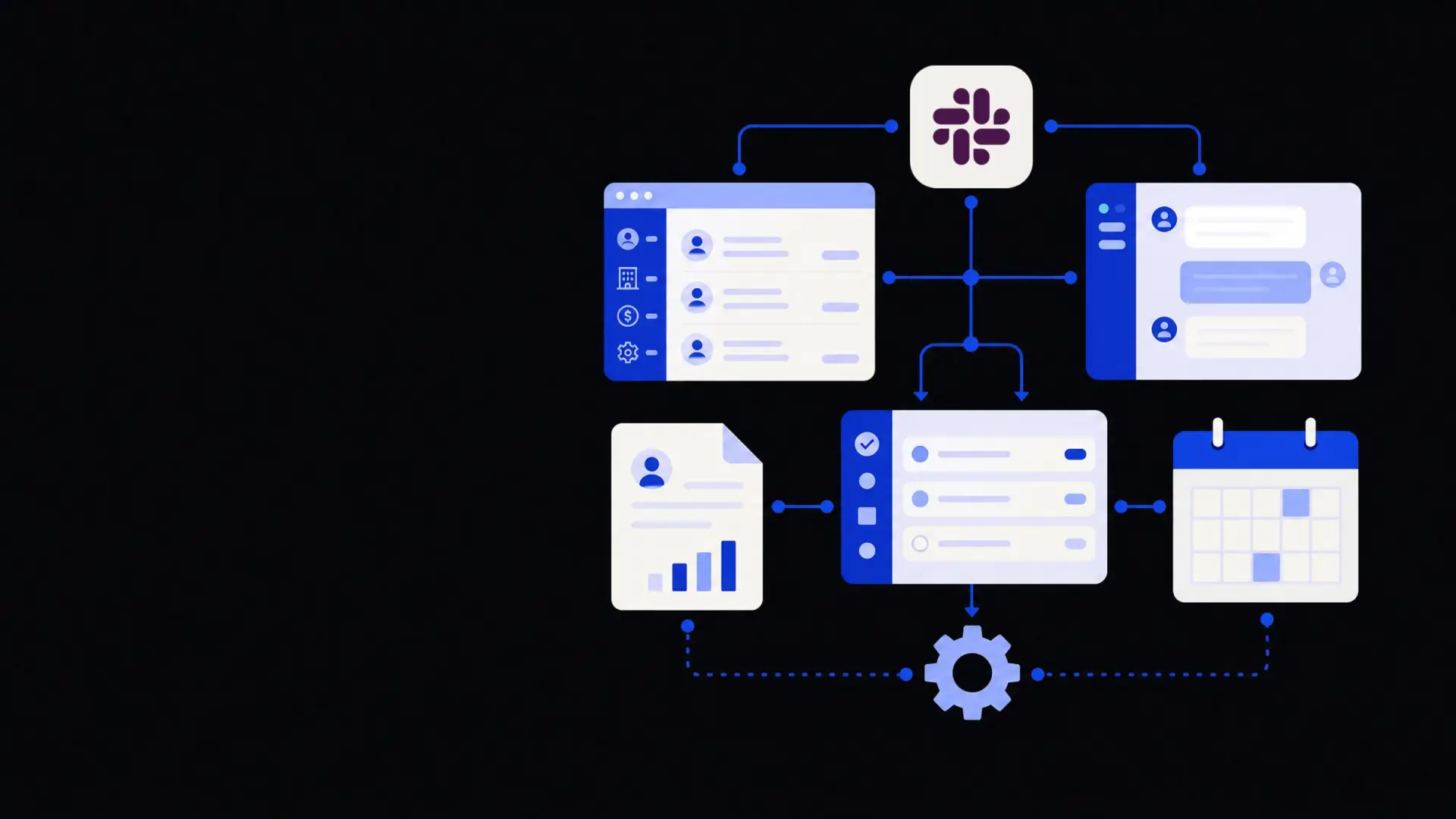
Slack CRM integration connects your customer system and project tools directly into Slack, so updates, tasks, and conversations stay in one place instead of scattered across apps. Done well, it lets teams create and track deals, tickets, and projects from Slack, receive targeted notifications, and keep CRM data in sync automatically while still respecting focus and data security.
What is Slack CRM integration and why use it?
Slack CRM integration is the practice of connecting Slack with your CRM and related tools so customer data, activities, and workflows can be viewed and acted on without leaving Slack. It usually combines native app integrations, workflow tools like Zapier or Make, and sometimes custom API work.
Teams typically look for Slack–CRM–project connections to solve a few recurring problems:
- Sales updates are stuck in the CRM and never reach delivery or support.
- Project work happens in Asana, Trello, or Jira, but context lives in email and Slack.
- People duplicate updates: once in Slack for the team, once in the CRM for reporting.
- Critical events (renewals, at-risk accounts, blocking issues) are easy to miss.
Common benefits when the integration is thought through:
- Faster response to customers – alerts for new leads, tickets, or escalations land in channels where people are already active.
- Fewer status meetings – deals and projects broadcast their own changes.
- Cleaner data – simple Slack actions update the CRM, reducing “I’ll do it later” data entry.
- Clearer ownership – automatic assignment and channel routing based on rules.
The trade-off is that it is easy to over-notify and create noise; the right design is selective and role-aware rather than “send everything to Slack.”
Core building blocks of a good Slack CRM integration
Before connecting tools, decide what information and actions genuinely need to move into Slack. A good pattern is to separate events (things you get notified about) from actions (things you can trigger or update from Slack).
Key building blocks:
- Notifications for key CRM events
These are one-way messages from your CRM or project tool into Slack channels or DMs. Examples:
- New lead created from a website form, routed to a #inbound-leads channel.
- Opportunity stage moved to “Contract Sent,” posted to #sales-pipeline.
- Customer raised a P1 support ticket, pinging #incident-room and the on-call owner.
- Slash commands and shortcuts
Slash commands are typed commands like
/crm search Acmeto query or create CRM records. Shortcuts are button-based actions within Slack. Examples:/deal createopens a form to capture key fields and save a new deal in the CRM.- A “Create task” button under a Slack message that sends it to your project tool.
- Message actions that sync context
Message actions convert Slack discussions into tracked work. For instance:
- “Convert to CRM note” saves a customer-relevant thread as a note on the account record.
- “Create Jira issue” or “Add to Asana” links the Slack thread to an existing project while saving a permalink.
- Bi-directional data sync for essentials
Bi-directional sync means changes in either system reflect in the other. This can be powerful but should be limited to clear use cases:
- Account owner or status updates in the CRM synced into a Slack customer channel topic.
- Task status in a project tool reflected as badges or reactions in Slack threads.
To orchestrate these, you can use standard connectors, off-the-shelf automation tools, or custom integrations built on Slack and CRM APIs. For more complex, cross-team flows, agencies like Framworq typically lean on workflow automation services so changes stay robust when tools or processes evolve.
Common CRM and project tools to connect with Slack
Different teams rely on different systems, but the integration patterns are similar. Here’s how they usually fit together.
Sales CRMs: HubSpot, Salesforce, Pipedrive and others
Sales CRM integrations help sales, marketing, and customer success stay coordinated.
Useful patterns:
- Lead routing and triage
- New qualified leads posted to #sales-queue with buttons to claim the lead.
- Automatic assignment in the CRM when a rep clicks “Claim.”
- Pipeline visibility
- Daily digest of deals created, moved to late-stage, or closed won/lost.
- Alerts when a high-value deal has no activity logged for a set number of days.
- Handovers to delivery or success
- When opportunities move to “Closed Won,” a Slack workflow:
- Posts a summary card into #customer-onboarding with key fields.
- Creates a project in Asana or Jira.
- Links the customer’s dedicated channel to the CRM record.
- When opportunities move to “Closed Won,” a Slack workflow:
- Simple updates from Slack
- Add a quick activity log (call, meeting, note) by interacting with a Slack message.
- Change deal stage or add a key field (e.g., “Next step date”) from a modal form.
Support and ticketing: Zendesk, Intercom, Freshdesk
Support tools benefit from fast visibility and collaborative swarming for tougher issues.
Useful patterns:
- Post new high-priority or VIP tickets to a dedicated #support-escalations channel.
- Allow agents to add internal Slack discussion links to the ticket for future reference.
- Let product or engineering teams subscribe only to tickets tagged “bug” or “feature request.”
- Automatically create an incident channel in Slack when a P1 ticket is opened.
Project and task tools: Asana, Trello, Jira, Linear, ClickUp
Project tools link execution back to the customer.
Useful patterns:
- New customer projects automatically create:
- A Slack channel (#proj-acme-q4-implementation).
- A project or board in the project tool.
- Links between them stored in both systems.
- Thread-to-task flows:
- Convert a Slack message into a task with:
- Title (editable).
- Description prefilled from the message.
- Assignee and due date.
- Link back to the original Slack thread.
- Convert a Slack message into a task with:
- Status in-channel:
- Project tools post updates only when status changes to key milestones.
- A daily summary of overdue tasks in project-specific channels rather than live pings.
For many organisations, these flows end up touching marketing, finance, and operations too. That is where broader business operations automation solutions help keep tool sprawl under control.
How to design your Slack–CRM–project setup step by step
You can treat this as a small product design exercise rather than a pure technical one. Aim for a minimal first version, then iterate.
- Map your core workflows
Pick 2–3 flows that cause the most friction today, such as:
- New lead to first response.
- Sales handoff to onboarding project.
- Support escalation to engineering fix.
For each, write the steps, roles involved, and which tools currently hold the “source of truth.”
- Decide what belongs in Slack vs the CRM vs the project tool
A good rule:
- Slack: conversation, decisions, and alerts.
- CRM: structured customer and deal data.
- Project tool: tasks, estimates, and delivery timeline.
Integration should pass links and minimal fields between systems rather than duplicating everything.
- Design channels and naming conventions
Clear channel structure matters as much as the integration itself. Examples:
- Functional channels: #sales-pipeline, #support-escalations, #customer-success.
- Customer channels: #cust-acme, #cust-zenith; optionally private for sensitive accounts.
- Project channels: #proj-acme-onboarding, #proj-internal-tooling.
Decide which events go to broad channels and which go to account- or project-specific channels.
- Choose integration tools and level of customisation
Options fall on a spectrum:
- Native apps (fastest):
- Install official Slack apps for your CRM and project tools.
- Configure notifications via built-in settings.
- Suitable for basic alerts and simple slash commands.
- No-code/low-code automation:
- Use platforms like Zapier, Make, or n8n.
- Assemble multi-step flows (e.g., “On new deal in CRM, create project, then post to Slack”).
- Good for teams that want flexibility without writing code.
- Custom API integrations:
- Use Slack’s API and CRM/project APIs directly.
- Create complex, organisation-specific logic and data handling.
- Useful when security, scale, or unique workflows matter.
Teams often start with native apps and automation tools, then move to custom API integrations or bespoke builds as complexity grows.
- Native apps (fastest):
- Set notification rules and filters
Over-notification is a common failure point. To avoid it:
- Filter by value or importance (e.g., only deals over a certain size).
- Route by ownership (e.g., post to the account’s channel, not a global firehose).
- Batch low-urgency updates into daily or hourly summaries.
- Pilot with a small group and iterate
Run a 2–4 week pilot with a subset of teams:
- Agree metrics, such as first-response time, number of missed handoffs, or time spent on manual updates.
- Collect feedback on notification noise and missing actions.
- Adjust filters, channel mapping, and available slash commands accordingly.
The most effective Slack CRM integrations do less by default—fewer, clearer workflows with strong ownership beat a stream of raw events.
Handling security, permissions, and data quality
Connecting Slack, your CRM, and project tools raises real questions about who can see what and how data is controlled.
Key considerations:
- Least-privilege access
Configure Slack apps and bots with only the scopes they need. In CRM and project tools, use integration-specific users with limited permissions rather than full admin accounts.
- Channel privacy
Use private channels for sensitive accounts, escalations, or HR/finance-related work. Ensure that integration messages about those records are restricted to the right channels.
- PII and confidential data
Decide what should never appear in Slack:
- Avoid posting full personal identifiers when not required.
- Send links to CRM records instead of full field dumps when in doubt.
- Audit and compliance
Enable logs and retention policies in Slack and your CRM. If you operate in regulated industries, coordinate with your compliance team so audit requirements are met across all integrated tools.
- Data quality safeguards
Allow simple updates from Slack but keep guardrails:
- Validate fields before writing to the CRM.
- Use dropdowns and controlled vocabularies in Slack modals instead of free text for critical fields.
- Log all Slack-initiated changes with who made them and when.
For complex governance requirements, teams often combine integration work with broader business process automation services so the same rules apply across tools, not just in Slack.
When to consider custom Slack CRM automation
Basic integration is often enough for small teams. Larger or more specialised organisations may outgrow generic connectors.
Custom automation is usually justified when:
- You maintain multiple CRMs or project tools that must act as a single system.
- Your customer journeys span many departments and tools, and you need cross-cutting workflows rather than one-off connections.
- You need advanced routing logic, such as assigning leads or escalations based on territory, product, or risk.
- You have strict security or data residency requirements that generic connectors cannot meet.
- You want AI-powered workflows, such as summarising CRM records into Slack, or drafting responses and notes based on past interactions.
In those cases, teams partner with specialists who combine AI consulting and business operations automation solutions to design and implement tailored Slack-centric workflows that still treat the CRM and project tools as the underlying source of truth.
By starting with a small number of clearly-defined workflows, choosing the right tools for your complexity, and being deliberate about notifications and access, you can turn Slack from yet another place to check into the practical front-end for your CRM and project systems.
Where Framworq can help
Want this mapped for your business?
We’ll help you find the highest-leverage workflows to automate first — and build them end to end. No jargon, no lock-in.
Book a free automation audit