
Gemini Gmail automation for smarter email and Docs workflows
Gemini Gmail automation lets you auto-draft, summarize, and route emails while generating the right Docs in the background, so teams spend less time on manual busywork.
On this page
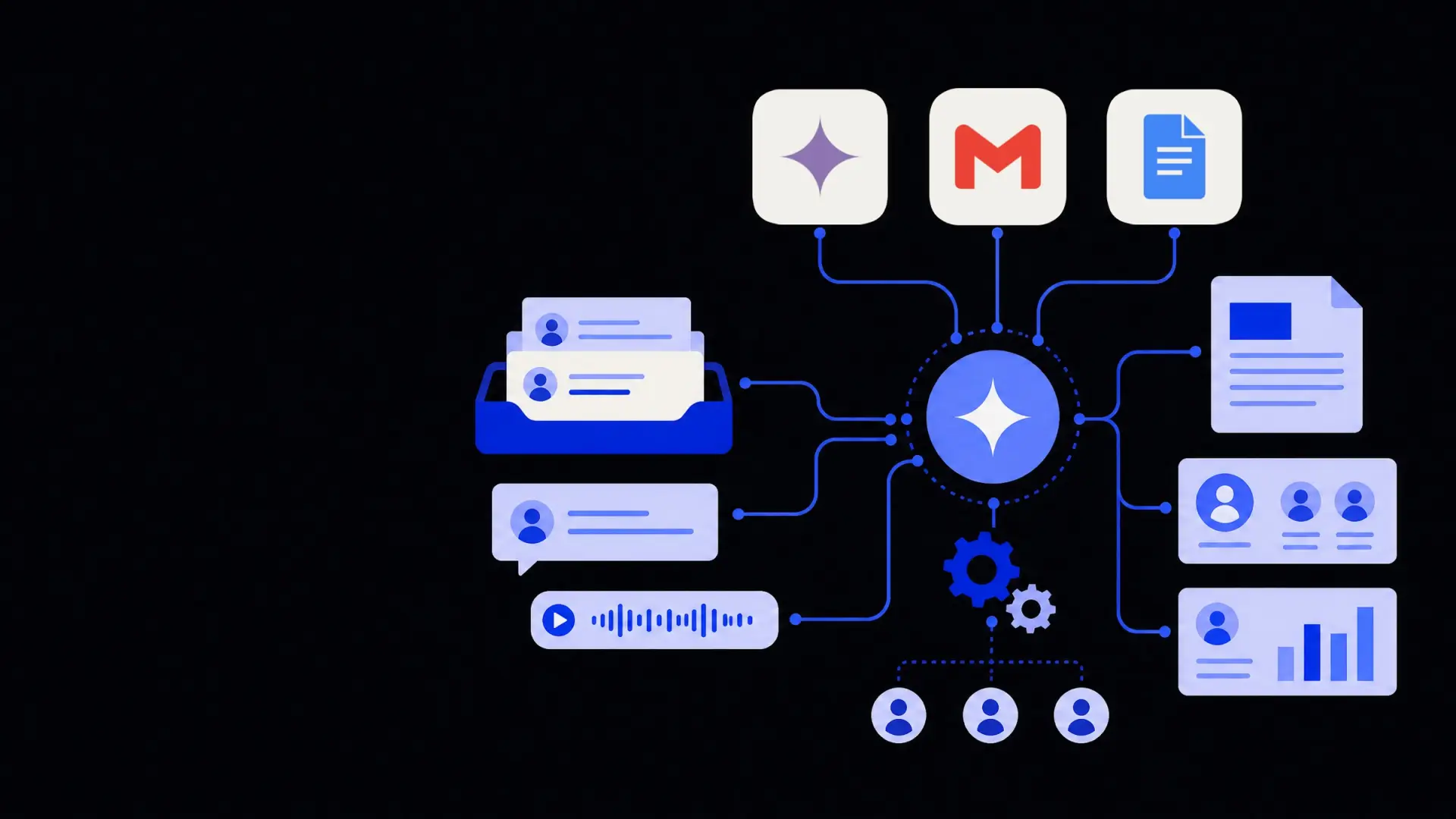
Gemini Gmail automation means using Google's Gemini models and connected tools to automatically draft, sort, summarize, and respond to emails, while creating and updating Google Docs in the background. Set up correctly, it can triage inboxes, generate document templates, log information into systems, and loop in humans for review so your team gains back hours without losing control.
What is Gemini Gmail automation?
Gemini Gmail automation is the practice of using Gemini models and workflows to handle repetitive Gmail tasks such as drafting replies, sorting messages, and extracting data, often combined with Google Docs for content creation. Instead of only using Gemini in a chat-style interface, you connect it to triggers from email and drive consistent outputs into Docs and other tools.
The foundation is usually a set of rules:
- When a specific type of email arrives, Gemini reads and classifies it.
- Based on the classification, it drafts a reply, creates or updates a Doc, and optionally updates another system.
- A human reviews or approves the high-impact items, while low-risk items can be sent automatically.
This combination of AI and workflow logic aligns well with broader business operations automation strategies where the goal is to reduce manual, repetitive work without compromising accuracy or compliance.
Core use cases for automating Gmail and Docs with Gemini
Not every email should be automated. The sweet spot is repetitive, structured communication where context still matters but patterns are clear.
1. Triage and routing of inbound email
Gemini can classify incoming messages and route them to the right place.
Typical triage patterns:
- Support vs sales vs internal admin.
- High-priority customers vs general inquiries.
- Time-sensitive requests (e.g., "urgent," dates, deadlines) vs informational.
A standard triage flow might:
- Trigger when a new email arrives in a shared inbox or label.
- Ask Gemini to classify the intent and urgency.
- Apply labels or move the email to a team folder.
- Notify a specific channel (e.g., "High-priority customer issue").
This keeps human attention focused where it matters instead of on manual sorting.
2. Drafting and personalizing replies
Gemini is well suited to drafting first-pass replies while leaving final approval to humans.
Common applications:
- Customer support: Turn a structured knowledge base or FAQ into friendly, context-aware replies.
- Sales replies: Turn a prospect inquiry into a personalized follow-up that references their company, product interest, and prior messages.
- Internal comms: Convert bullet points or raw updates into clear, structured replies.
A safe pattern is "AI drafts, human edits, AI logs":
- Gemini drafts the reply in Gmail using prior thread context and your policies.
- A human reviews, edits, and sends.
- The system logs the interaction or updates a Doc summary automatically.
3. Turning emails into Google Docs
For longer-form content, email is often just the starting point.
Examples where automation helps:
- Proposals: A lead's email with requirements can drive a first draft of a proposal in Docs using your template.
- Meeting notes: A calendar invite plus follow-up email can be turned into a Doc agenda or summary.
- Incident reports: A ticket email can be automatically converted into an incident Doc with pre-filled sections.
In these patterns, Gemini:
- Extracts key details from the email.
- Copies them into a structured Doc template.
- Adds a first draft of narrative sections (e.g., background, scope, objectives).
Teams then work in Docs, rather than copy-pasting from Gmail.
4. Summarizing long email threads
Gemini is effective at compressing multi-message threads into digestible summaries.
Cases where this is useful:
- Handoffs between team members.
- Executive summaries of long vendor or partner threads.
- Weekly rollups of specific labels (e.g., "Customer Escalations").
A typical flow:
- Take the full thread text as input.
- Ask Gemini for a concise summary plus key decisions and open questions.
- Insert that into a Doc, or into the top of the thread as a draft reply, or into another system.
The most reliable Gemini Gmail automations are those where AI drafts and classifies, and humans retain final decision control.
5. Extracting structured data from emails
When your inbox contains mini-forms in free text, Gemini can transform them into structured data.
Examples:
- Contact details for leads or vendors.
- Order details for manual purchase requests.
- Project intake information from internal teams.
Gemini can read the email, extract fields like name, company, phone, budget, and requirements, and:
- Append them to a shared Google Doc.
- Populate a spreadsheet.
- Pass them to your CRM via an integration.
This closes the gap between unstructured email and your operational systems.
How to design a Gemini Gmail automation workflow
A well-designed workflow matters more than the specific prompts. The steps below apply whether you are configuring native Gemini features, using a workflow platform, or building a custom integration.
1. Start from a specific, painful workflow
Pick one precise flow such as:
- "Inbound lead → triage → first reply → proposal Doc draft."
- "Customer escalation → prioritize → summary Doc → internal Slack alert."
- "New hire paperwork → email receipt → Docs generation → checklist update."
Write it out step-by-step. This gives you a roadmap for where Gemini adds value and where humans must stay in control.
2. Define clear triggers and outcomes
Each automation needs:
- Trigger: What starts it? A new email to an address, a label added, a specific keyword?
- Inputs: Subject, body, attachments, labels, thread history.
- AI tasks: Classify, summarize, extract data, draft text, generate bullet points.
- Outputs: Draft email, new Doc, updated Doc, metadata labels, updates to other tools.
Keep each workflow narrow. It is usually better to have three small, predictable automations than one large, opaque one.
3. Use templates and guardrails in Docs
Templates keep AI outputs consistent and easier to review.
For Docs-based outputs:
- Create standard templates with headings and placeholders.
- Instruct Gemini to fill specific sections and leave others blank.
- Add notes in the template about what content is allowed or not allowed.
Guardrails might include:
- Explicit tone guidelines (e.g., "plain language, no promises about delivery dates").
- Words or phrases to avoid.
- Required fields that must not be fabricated (e.g., contract values, legal terms).
4. Design review and approval checkpoints
Decide which emails or Docs can be auto-sent or auto-published and which must be reviewed.
Common patterns:
- Full automation: Low-risk, low-impact items such as internal reminders or standard confirmations.
- Draft-and-review: Any customer-facing or contractual communication.
- AI suggestion only: Gemini proposes classifications or tags, a human confirms.
Implementing review steps may feel slower at first, but it builds trust in the system and prevents silent errors.
5. Integrate with the rest of your stack
Email and Docs are only part of most processes. Consider how Gmail and Docs automations connect to your other tools.
Common integrations:
- CRM (for leads and customer emails).
- Ticketing systems (for support requests).
- Project or task management tools.
- Internal documentation repositories.
For more advanced setups, an integration layer or service like workflow automation or business process automation services can coordinate Gmail, Docs, and third-party tools into one coherent flow.
Practical examples of Gemini Gmail and Docs automations
To make the concepts concrete, here are a few end‑to‑end scenarios.
Sales lead intake and proposal drafting
- A new lead emails your sales address.
- Gemini classifies the lead type, extracts contact details and key requirements.
- The system logs the details into your CRM and adds the email to a "New Leads" label.
- Gemini drafts a reply acknowledging the request and suggesting a meeting time.
- In parallel, Gemini starts a proposal Doc from a template, filling in the company name, problem statement, and any known requirements.
- A salesperson reviews the draft email and proposal, edits, and sends.
Benefits: shorter response times, consistent information capture, and less copy-paste between tools.
Customer support escalation documentation
- A support email with urgent language is detected in a shared inbox.
- Gemini reads the thread, classifies it as an escalation, and sets a high-priority label.
- It generates a summary Doc including background, impact, and customer details using an incident template.
- The system posts the summary into your collaboration tool with a link to the Doc.
- As the thread continues, Gemini updates the "Timeline" section of the Doc with key events.
Benefits: clear record of escalations, easier handoffs, and better post‑incident reviews.
Internal project intake and brief creation
- An internal stakeholder sends an email requesting a new campaign or project.
- Gemini extracts project goals, deadlines, and constraints into a Google Doc using a standard brief template.
- The Doc link is added to a shared project folder.
- Gemini drafts a reply asking for any missing details and sharing the draft brief for review.
Benefits: fewer back‑and‑forth emails, consistent briefs, and centralized documentation.
Risks, limitations, and how to manage them
Automating Gmail and Docs with Gemini has clear benefits, but it also introduces risks that should be actively managed.
Accuracy and hallucinations
Gemini may infer or generate information that was not present in the email or your documents. This is a problem for:
- Prices, contract terms, and legal language.
- Dates, deadlines, and commitments.
- Factual claims about your product or policies.
Mitigations include:
- Explicitly instructing Gemini not to invent certain fields.
- Using retrieval from canonical sources (e.g., policy Docs) instead of relying on model memory.
- Keeping humans in the loop for high-risk content.
Privacy, security, and access control
Emails and Docs often contain sensitive data. Before scaling automation:
- Review how data is stored, logged, and accessed.
- Limit automations to inboxes and folders where access permissions are clear.
- Avoid sending full email content to third parties unless contracts and data protections are in place.
Automations should respect the same access control boundaries you would apply to human users.
Change management and team adoption
Even useful automations can fail if the team does not understand or trust them.
To improve adoption:
- Start with low-risk, visible automations such as summaries and drafts.
- Share examples of before/after workflows and time saved.
- Provide clear instructions on when to trust AI output and when to double-check.
Aligning Gmail and Docs automation with your broader business operations automation strategy also helps teams see how their work fits into a bigger picture.
When to consider custom development or expert support
As your automations grow more complex, maintaining them with off‑the‑shelf tools can become difficult.
You may want more structured support when:
- Multiple teams and brands share infrastructure but need different rules.
- Emails must be tightly linked to CRMs, ERPs, or custom internal tools.
- You require audit trails, versioning, and detailed logging for compliance.
- You need to coordinate many steps across Gmail, Docs, and other systems with minimal manual work.
In these cases, organizations often look to custom AI development, business process automation, or other integration-focused services to build robust, maintainable workflows instead of scattered one-off automations.
By treating Gemini Gmail automation as a set of carefully designed workflows—rather than a single magic feature—you can reclaim significant time from routine email and document work while keeping humans firmly in control of important decisions.
Where Framworq can help
Want this mapped for your business?
We’ll help you find the highest-leverage workflows to automate first — and build them end to end. No jargon, no lock-in.
Book a free automation audit